Operators are the operational units within your brands that handle day-to-day moderation activities. Each operator manages specific channels, users, and moderation configurations. This comprehensive guide covers all aspects of operator management, from creation and configuration to optimization and troubleshooting.
#Operator Overview
Operators serve as the bridge between your brand-level policies and actual moderation execution. They provide:
- Focused Moderation: Dedicated teams for specific markets, languages, or sports
- Customized Settings: Tailored configurations that can override brand defaults
- Independent Operations: Separate user bases, channels, and moderation workflows
- Scalable Structure: Easy addition of new markets or operational units
#Creating a New Operator

Click the "Add Operator" button within the expanded brand card. This button is only available for users with Supervisor permissions.

Fill in the operator name field and click Create new operator.

When a new operator is succesfully added, it will reveal the rest of the operator settings, that can be managed.
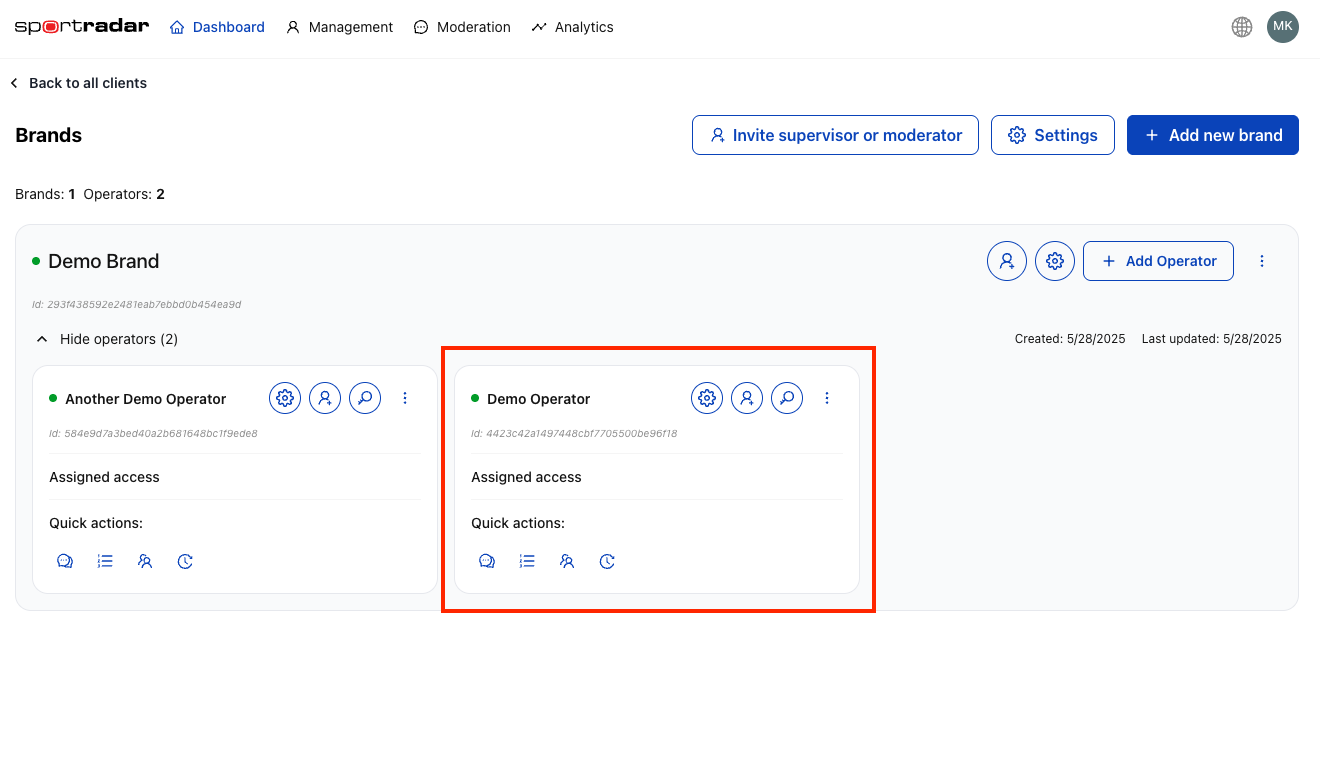
The new operator will appear inside the brand card.
#Operator Configuration
Access operator settings by clicking the settings/gear icon next to any operator. Operator configuration is organized into comprehensive tabs:
#Basic Information
Configure fundamental operator details:
- Operator Name: Clear, descriptive identifier for the operational unit
- Status: Enable/disable the operator and all its resources
- Description: Organizational notes and operational context
#Message Settings
Control message handling and retention:
- Maximum Message Length: Character limits for user posts (1-500 characters)
- Message Retention Time: How long messages are stored (1-365 days)
- Max Messages Per User: Rate limiting for individual users
#Reactions Configuration
Manage emoji and reaction systems:
- Unicode Reactions: Enable standard emoji reactions
- Custom Reactions: Upload custom reaction images with specific URLs
- Reaction Management: Add, remove, and reorder reaction options
- User Permissions: Control who can use reactions
Managing Custom Reactions:
- Upload images via URL or direct upload
- Support for common image formats (PNG, JPG, GIF)
- Drag and drop to reorder reaction display
- Delete unwanted reactions with confirmation prompts
#Spam Detection
Configure anti-spam mechanisms:
- Post Rate Limit: Maximum messages per time interval
- Spamming Interval: Time window for rate calculations (in seconds)
- Automated Responses: Actions taken when spam is detected
- Whitelist Exceptions: Users exempt from spam detection
#Blacklisted Words Management
Control prohibited content at the operator level:
Blacklist Management Features:
- Bulk Import: Upload CSV files with prohibited terms
- Manual Entry: Add individual words or comma-separated lists
- Search Functionality: Find specific terms in large blacklists
- Export Options: Download current blacklist as CSV for backup
- Inheritance Control: Override or supplement brand-level blacklists
Best Practices for Blacklisted Words:
- Include common variations and misspellings
- Consider cultural and language-specific terms
- Regular review and updates based on emerging trends
- Document reasons for specific word additions
- Test words before adding to avoid false positives
#Sanctioning Policies
Define user penalty structures:
- Base Suspension Length: Default penalty duration (in seconds)
- Offense Score System: Point-based violation tracking
- Progressive Penalties: Escalating consequences for repeat violations
- Appeal Processes: User contest procedures
Sanctioning Configuration Options:
- Warning Thresholds: Score levels that trigger warnings
- Suspension Durations: Time-based penalties (minutes to days)
- Permanent Ban Criteria: Violations that result in permanent removal
- Score Decay: How quickly old violations lose impact
- Special User Handling: Different rules for VIP or problematic users
#Responsible Gambling
To turn on the Responsible Gambling feature, open the operator settings and navigate to the Responsible Gambling tab. Toggle the switch to enable the feature.
When enabled, a dedicated Responsible Gambling section becomes available in the Moderation navigation. It provides an AI-powered dashboard for identifying users who may be exhibiting signs of problematic gambling behavior, allowing your moderation and support teams to review RG scores, inspect flagged message histories, and manage alerts.
For a full guide to the Responsible Gambling module — including how to use the Priority Queue, manage alerts, and review individual user profiles — see the section.
#API Key Management
Each operator requires unique API keys for integration with your platforms:
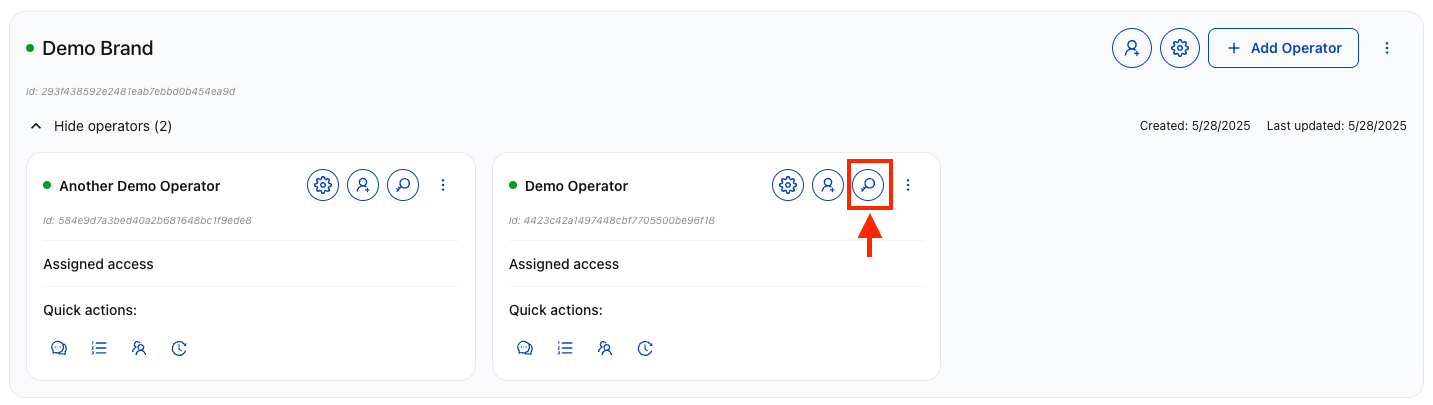
Navigate to the Dashboard and locate the operator. Click "API Keys" in the corresponding operator's row.

View all API keys for the operator. Click on any key to copy it to your clipboard. Use the toggle switch to enable or disable specific keys.
To generate a new API key, click "Add new key". The new key appears immediately and can be copied for integration use.
#API Key Best Practices
- Environment Separation: Use different keys for development, staging, and production
- Regular Rotation: Generate new keys periodically for security
- Access Control: Limit key access to authorized technical personnel
- Monitoring: Track API key usage and performance
- Backup Keys: Maintain spare keys for emergency situations
#Operator-Level User Management
#Inviting Moderators
Moderators have access limited to specific operators:
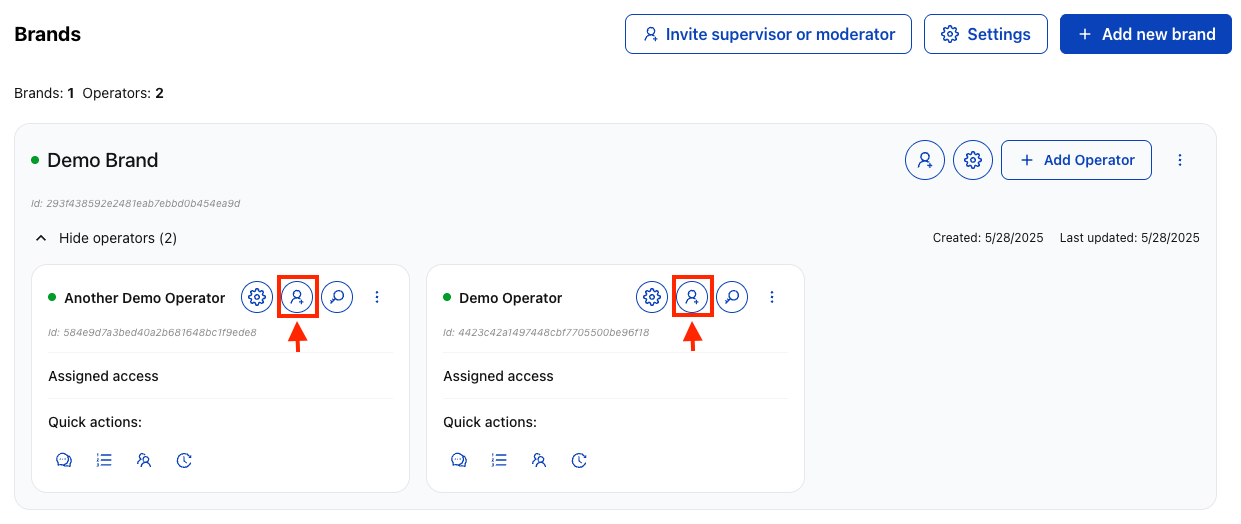
Expand the brand to show operators and click the invite button on the specific operator card.

Select "Moderator" role, enter the user's email address, and confirm the specific brand and operator selection. Click "Send Invitation".

The user receives a targeted invitation for the specific operator with access limited to that operator only.
#Moderator Responsibilities
Operator-level moderators can:
- Review Flagged Messages: Process AI-flagged content requiring human review
- Manage Users: Apply suspensions, bans, and warnings
- Monitor Channels: Oversee active conversations and user behavior
- Generate Reports: Create moderation activity summaries
- Escalate Issues: Route complex cases to supervisors
#Channel Management
Operators manage multiple channels for different purposes:
#Channel Types by Operator
- Game-Specific Channels: Individual sports events or matches
- General Chat: Open discussion areas for the operator's audience
- VIP Channels: Premium user communications
- Regional Channels: Location-based discussions
- Event Channels: Special tournaments or promotional events
#Channel Creation Process
#Access Channel Management
Navigate to Moderation > Channels.
#Click Create Channel
Available to users with appropriate permissions.
#Configure Channel Settings
Set name, ID, description, language, and status.
#Set Permissions
Configure user access, message permissions, and reaction capabilities.
#Apply Content Rules
#Performance Monitoring
#Key Metrics to Track
- Message Volume: Total messages processed per operator
- Moderation Accuracy: Percentage of correct AI and human decisions
- Response Times: Speed of moderation actions and user support
- User Satisfaction: Feedback on moderation fairness and effectiveness
- Channel Activity: Engagement levels across different channels
#Monitoring Tools
- Real-Time Dashboards: Live activity and performance indicators
- Analytics Reports: Historical trends and comparative analysis
- Alert Systems: Notifications for unusual activity or issues
- Performance Benchmarks: Comparison against organization standards
#Operator Lifecycle Management
#Operator Activation
#Create Operator
Set up the basic operator with initial configuration.
#Configure Settings
Customize moderation policies and user rules.
#Generate API Keys
Create integration keys for platform connectivity.
#Invite Moderators
Add team members with appropriate permissions.
#Test Integration
#Ongoing Maintenance
Regular operator management tasks:
- Weekly Performance Reviews: Analyze key metrics and user feedback
- Monthly Policy Updates: Adjust moderation settings based on trends
- Quarterly User Audits: Review moderator access and performance
- Annual Strategy Assessment: Evaluate operator effectiveness and future needs
#Operator Optimization
Continuous improvement strategies:
- A/B Testing: Compare different moderation approaches
- User Feedback Integration: Incorporate community suggestions
- Technology Updates: Leverage new AI and moderation features
- Benchmark Analysis: Compare performance against industry standards
#Configuration Inheritance and Overrides
#Understanding the Hierarchy
Brand Settings (Default)
    ↓
Operator Settings (Override)
    ↓
Channel Settings (Final Override)#Override Strategy
- Inherit When Possible: Use brand defaults for consistency
- Override Strategically: Customize only when operationally necessary
- Document Changes: Maintain records of overrides and reasons
- Test Impact: Verify changes don't affect other system components
Operator settings override brand defaults:
- Changes at the operator level only affect that specific operator
- Operator overrides remain in effect even when brand settings change
- Removing an operator override reverts to the current brand default
- Always test override changes in a staging environment first
#Troubleshooting Common Issues
#Operator Creation Problems
- Permission Errors: Verify Supervisor role and brand access
- Naming Conflicts: Ensure operator names are unique within the brand
- Resource Limits: Check if maximum operator count has been reached
#Configuration Issues
- Setting Conflicts: Review inheritance hierarchy and override logic
- Performance Impact: Monitor system performance after major changes
- User Access Problems: Verify moderator permissions and role assignments
#Integration Challenges
- API Key Issues: Ensure keys are active and properly configured
- Connection Problems: Verify network connectivity and endpoint URLs
- Data Sync Issues: Check message flow and moderation decision transmission
#Performance Problems
- Slow Response Times: Analyze moderation queue and resource allocation
- High False Positive Rates: Adjust AI thresholds and blacklist accuracy
- User Complaints: Review moderation decisions and appeal processes
#Best Practices
#Naming and Organization
- Consistent Naming: Use clear patterns like "Region_Language_Sport"
- Logical Grouping: Organize operators by business function or geography
- Documentation: Maintain operator purpose and responsibility records
#Security and Access
- Principle of Least Privilege: Grant minimum necessary permissions
- Regular Audits: Review user access and API key usage quarterly
- Secure Communication: Use encrypted channels for sensitive configuration data
#Performance Optimization
- Monitor Continuously: Track key metrics and user satisfaction
- Optimize Gradually: Make incremental improvements rather than major overhauls
- Learn from Data: Use analytics to guide configuration decisions
- Stay Current: Keep up with new features and best practices
For complex operator configurations, custom integrations, or enterprise-level deployments, contact your Sportradar representative for specialized guidance and support options.
After setting up your operators, proceed to create channels, configure moderation settings, and invite moderators to complete your moderation workflow.