Moderation settings are the foundation of your content management system. These configurations determine how messages are filtered, users are managed, and automated actions are taken. Proper setup ensures efficient moderation while maintaining a positive user experience across all your Virtual Stadium channels.
#Core Moderation Components
#Automated Content Filtering
- Blacklisted Words: Forbidden terms that trigger automatic moderation actions
- Spam Detection: Algorithms to identify repetitive or unwanted content
- Language Detection: Identify and handle non-permitted languages
- Link Filtering: Control sharing of external URLs and media content
#Autopilot Settings
- AI Confidence Thresholds: Define how certain the AI must be before taking automated action
- Automated Actions: Configure what happens when content is flagged by the system
- Escalation Rules: Determine when to involve human moderators for review
- Learning Mechanisms: Allow the system to improve accuracy over time
#User Sanctioning
- Warning Systems: Progressive warnings before applying penalties
- Temporary Suspensions: Time-based access restrictions for policy violations
- Permanent Bans: Complete removal from the platform for severe infractions
- Appeal Processes: Structured methods for users to contest moderation decisions
#Configuring Moderation Settings
Moderation settings are configured at the operator level, allowing each operator to have customized rules that reflect their specific audience, language, and content policies.
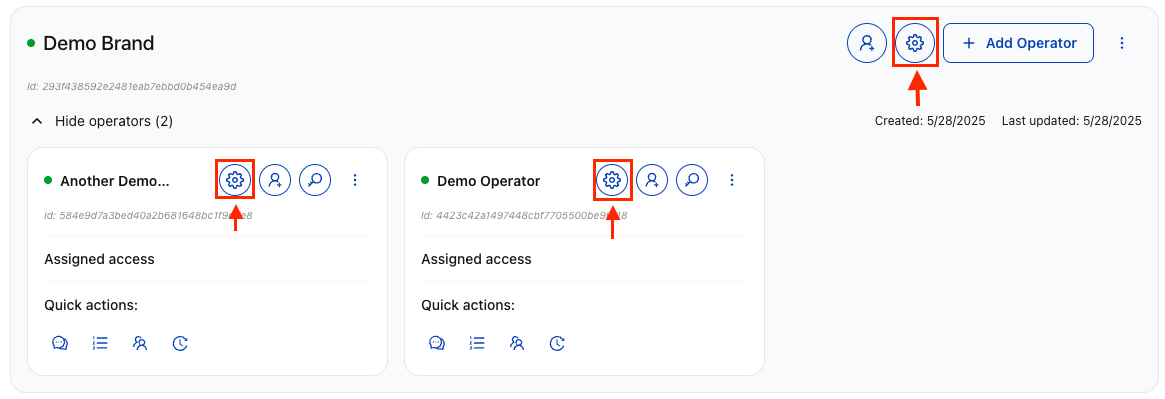
Navigate to the Dashboard and locate the operator you want to configure. Click on the Settings button (gear icon) for that operator.

In the operator settings modal, you'll see multiple configuration sections. Click through each tab to configure different aspects of moderation for this operator.

Configure your moderation rules, spam detection, blacklisted words, and user sanctioning policies. Each setting includes tooltips and guidance to help you make appropriate choices for your community.
Below in an overview of the main available settings, for more details see the Manage operators page.
#Setting up Content Filtering
#Blacklisted Words Configuration
Configure terms and phrases that should trigger automatic moderation:
- Add Platform-Specific Terms: Include words relevant to your betting platform and sports content
- Include Variations: Add common misspellings, abbreviations, and character substitutions
- Language Considerations: Account for multiple languages if your platform is international
- Regular Updates: Maintain and expand the list based on emerging slang and new violation patterns
#Spam Detection Parameters
Set up automated spam prevention:
- Message Frequency Limits: Define how often users can post messages (e.g., 1 message per 5 seconds)
- Similarity Thresholds: Set limits for how similar consecutive messages can be
- Time Windows: Configure detection periods for spam pattern analysis
- Progressive Restrictions: Increase penalties for repeated spam attempts
#Link and Media Filtering
Control external content sharing:
- URL Restrictions: Allow/block specific domains or URL patterns
- Media Permissions: Configure image, video, and file sharing capabilities
- Whitelist Trusted Sources: Permit links from approved betting, sports, and news sources
#Configuring Autopilot Moderation
#AI Confidence Thresholds
Set how confident the AI system must be before taking automated action:
- High Confidence (90%+): Automatic action without human review for clear violations
- Medium Confidence (70-89%): Flag content for human moderator review
- Low Confidence (less than 70%): Log the detection but allow content to remain visible
#Automated Actions
Define what happens when content triggers moderation rules:
- Delete: Remove content immediately from all users' view
- Hide: Make content invisible to other users but preserve for review
- Flag: Mark content for moderator review while keeping it visible
- Warn: Send automated warning to the user about policy violations
#Escalation Rules
Configure when human intervention is required:
- Complex Content: Route ambiguous cases to human moderators
- Repeat Offenders: Escalate users with multiple violations
- VIP User Protection: Special handling for premium or important users
- Appeal Triggers: Automatic review when users contest decisions
#User Sanctioning Configuration
#Progressive Warning System
Establish escalating consequences for policy violations:
- First Offense - Automated warning message with policy reminder
- Second Offense - Temporary message restriction (e.g., 10 minutes)
- Third Offense - Extended suspension (e.g., 24 hours)
- Repeated Offenses - Permanent ban consideration with human review
#Suspension Parameters
Configure time-based penalties:
- Duration Options: 1 hour, 6 hours, 24 hours, 7 days, 30 days
- Progressive Scaling: Longer suspensions for repeat violations
- Severity-Based: Immediate longer suspensions for serious violations
- Appeal Periods: Time windows for users to contest decisions
#Special User Handling
Account for different user types:
- VIP Users: Modified penalties or enhanced review processes
- New Users: Grace periods for learning community rules
- Problem Users: Enhanced monitoring and faster escalation
- Trusted Users: Reduced false positive rates and appeal priorities
#Testing and Validation
#Initial Configuration Testing
Before going live with new moderation settings:
- Test Account Validation: Use dedicated test accounts to verify filter effectiveness
- False Positive Checking: Ensure legitimate sports and betting content isn't incorrectly flagged
- Moderator Tool Testing: Verify that moderator interfaces work correctly with new settings
- Edge Case Testing: Test unusual content scenarios that might trigger unexpected behavior
#Performance Monitoring
Track the effectiveness of your moderation configuration:
- False Positive Rates: Monitor legitimate content that gets incorrectly flagged
- False Negative Rates: Track problematic content that bypasses filters
- Moderator Workload: Ensure human reviewers aren't overwhelmed
- User Experience: Monitor user complaints and satisfaction with moderation actions
#Best Practices
#Common Configuration Mistakes
- Over-Aggressive Initial Settings: Setting AI thresholds too low initially, causing excessive false positives
- Cultural Insensitivity: Failing to account for linguistic and cultural differences in your user base
- Inadequate Appeal Process: Not providing clear, accessible methods for users to contest decisions
- Stagnant Rules: Failing to update blacklisted words and thresholds as language and behavior evolve
- Insufficient Training: Not properly training moderation staff on new tools and procedures
#Integration With Channel Management
Your moderation settings work in conjunction with channel configurations:
- Channel-Specific Overrides: Individual channels can have customized moderation rules
- Operator-Level Defaults: Settings configured here apply to all new channels unless overridden
- High Priority Channels: Enhanced moderation attention for critical conversations
- Persistent Channels: Long-term moderation consistency across multiple events
After configuring moderation settings, test thoroughly in a staging environment, train your moderation team on the new configurations, and monitor initial performance closely. For detailed channel management, see the Channels documentation.