Channels are individual chat rooms within the Virtual Stadium moderation system that facilitate real-time communication for specific events or ongoing discussions. Each channel is associated with an operator and typically represents a single match, tournament, or community space where users can interact and share messages.
#What Are Channels?
Channels serve as dedicated communication spaces that can be configured for various purposes:
- Match-specific chat rooms for live sporting events and competitions
- Tournament discussions spanning multiple games or events
- Community forums for ongoing user engagement
- Brand communication channels for official announcements
- Support channels for customer service interactions
Real-time Communication
- Live message exchange between users during events
- Automatic message moderation and filtering
- Multi-language support for international audiences
Flexible Configuration
- Temporary channels with specific expiration dates for one-time events
- Persistent channels with no expiry date for long-term use and reusability
- High priority designation for critical events requiring enhanced monitoring
- External moderation service integration for specialized content filtering
Advanced Management
- Message retention settings in persistent channels to control how long messages remain visible (1-14 days)
- Parent-child relationships for organizing related channels hierarchically
- Test channel capabilities for flash bet events and feature testing (not available in hosted adapter integration)
- Search and filtering to quickly locate specific channels
#Channel Information
The channels table provides comprehensive details about each channel including:
- Channel name and ID for identification and reference
- Active user count and message volume for engagement metrics
- Expiration date and time for lifecycle management
- Language settings for localization
- Moderation source (Virtual Stadium or External Service)
- Special designations (High Priority, Test Channel, Persistent)
Navigate through the table to view messages, edit channel settings, manage hierarchies, or delete channels based on your user permissions.
Channel management capabilities vary based on your user role. Supervisors have full access to create, edit, and delete channels, while Moderators can view messages, and Guests have limited viewing permissions.
#Channel Creation Form Guide
Understanding each field in the channel creation form is essential for proper configuration. You can use the interactive guide below to explore form fields by hovering over any highlighted area to see its description, then clicking to jump to detailed documentation for that field if any, or simply read the documentation sections following below.
#Adding a New Channel

To add a new channel, click "Create a channel". This action prompts a modal with fields for setting metadata.

Fill out the form and click Save. All metadata, except the channel ID, can be modified later.

Channels can be managed by clicking on the Edit button.
#Testing Channels
Only available in the custom adapter integration.
After the channel is created, you can choose to enable testing certain match events in a channel by enabling the test channel toggle button.
Clicking the Test button opens a modal.
If the channel has match or tournament context set, you can test the events by clicking on the event name.
#Channel Messages
By clicking the Messages button you have an option to access the content of each channel.
The search field offers you an option to browse through all active channels.
#Persistent Channels
Persistent Channels are channels that have no expiry date and are designed for long-term reuse. Unlike regular channels that expire after a set time, persistent channels remain active indefinitely, making them ideal for ongoing use across multiple events.
No Expiry Date
- Channels remain active without manual renewal
- No need to create new channels for each event
- Automatically set with far-future expiration dates
Message Age Control
- Configurable message retention: Set how long messages stay visible in the chat
- Default 24 hours: Messages are automatically deleted after 24 hours by default
- Range 1-14 days: Choose message retention between 1 to 14 days
- Fresh conversations: Each new event starts with a clean chat history
- Irreversible: Once a channel is set as persistent, it cannot be reverted to a normal channel with an expiry date.
- Message age is locked: After a persistent channel is created, the Message age setting can no longer be edited. To use a different message age, a new persistent channel must be created.
Plan your persistent channel configuration carefully before creation, as these settings are permanent.
#How Persistent Channels Work
- No manual expiration: Channel stays active indefinitely
- Automatic cleanup: Only messages expire, not the channel itself
- Reusable: Same channel can host multiple events over time
- Automatic deletion: Messages disappear after the configured time period
- Clean slate: Each new event can start with fresh chat history
- User experience: Participants see only recent, relevant messages
#How to Create a Persistent Channel
Click "Create Channel" (Supervisor permissions required) and fill in basic information. Enable the "Permanent Channel" toggle switch and set message age (1-14 days, default is 1 day). Note: Persistent mode can only be enabled when creating new channels and cannot be changed later.
#Message Age Settings
- 1 day (default): Messages deleted after 24 hours
- Up to 14 days: Extend message visibility for longer discussions
- Automatic cleanup: System handles message deletion automatically
- No manual intervention: Messages dissapear from the channel without any administrative action
Persistent channels are perfect for events that don't overlap in time, allowing you to reuse the same channel infrastructure while maintaining fresh conversations for each event.
#Moderation as a Service (MaaS)
Moderation as a Service (MaaS) is an external content moderation solution that provides automated and human-powered content filtering for chat channels. When enabled, your channels are moderated by a third-party service instead of the built-in Virtual Stadium moderation system.
MaaS offers specialized moderation capabilities including:
- Real-time content filtering using advanced AI and machine learning
- Human moderation support for complex or sensitive content
- Customizable moderation rules tailored to your specific requirements
- Multi-language support for international communities
- Compliance management for regulatory requirements
When a channel is configured to use MaaS:
#Enhanced Moderation Capabilities
- Advanced AI Detection: Sophisticated algorithms detect inappropriate content, spam, and policy violations
- Human Review: Complex cases can be relayed to human moderators
- Custom Filters: Tailored moderation rules based on your community guidelines
- Real-time Processing: Content is moderated instantly as messages are posted
#Reduced Administrative Overhead
- Automated Workflows: Most moderation decisions are handled automatically
- Scalable Solution: Handles high-volume channels without performance degradation
- 24/7 Coverage: Continuous moderation coverage across all time zones
- Reporting & Analytics: Detailed insights into moderation actions and trends
- High Priority Disabled: Channels using MaaS cannot be designated as high priority
- External Dependencies: Moderation quality depends on the external service provider
- Configuration Constraints: Some Virtual Stadium features may not be available
#How to Enable MaaS
- Supervisor Permissions: Only users with Supervisor role can enable MaaS
- Service Configuration: MaaS must be enabled for your organization by an administrator
- External Service Setup: The external moderation service must be properly configured

For New Channels:
Click "Create Channel" and fill in the required channel information.
Locate the "Moderation Service Channel" toggle switch and toggle it to ON.
Note: The High Priority toggle will be automatically disabled when MaaS is enabled.

For Existing Channels:
Find the channel you want to modify in the channels list and click the "Edit" button.
Locate the "Moderation Service Channel" toggle switch and toggle it to ON.
Note: If High Priority was previously enabled, it will be automatically disabled.
#Navigation Between Moderation Sources
When both Virtual Stadium and MaaS are enabled for your organization, you can easily switch between viewing channels from different moderation sources:
#Source Selection Buttons
- Virtual Stadium: View channels moderated by the built-in VS system
- Moderation Service: View channels moderated by the external MaaS provider
These buttons appear at the top of the channels page when both moderation sources are available.
Moderation as a Service availability and features depend on your organization's configuration and agreements with external moderation providers. Contact your administrator for specific setup requirements and service capabilities.
#High Priority Channels
A High Priority Channel is a special designation for chat channels that require elevated processing and visibility within the Virtual Stadium moderation system. When enabled, these channels receive priority treatment to ensure critical conversations are monitored and moderated with enhanced attention.
#What Does High Priority Mean?
High priority channels provide:
- Enhanced Monitoring: These channels receive increased attention from moderation systems
- Priority Processing: Messages and events in high priority channels are processed before standard channels
- Elevated Visibility: High priority channels are flagged for moderators to focus on important conversations
- Optimized Performance: System resources are allocated to ensure optimal performance for critical channels
#When to Use High Priority Channels
Consider enabling high priority for channels that contain:
- Critical Events: Major sporting events, championships, or high-stakes competitions
- VIP Conversations: Channels with important stakeholders or premium users
- Time-Sensitive Content: Channels where immediate moderation response is crucial
- High-Volume Traffic: Popular channels that require consistent monitoring
#How to Enable High Priority
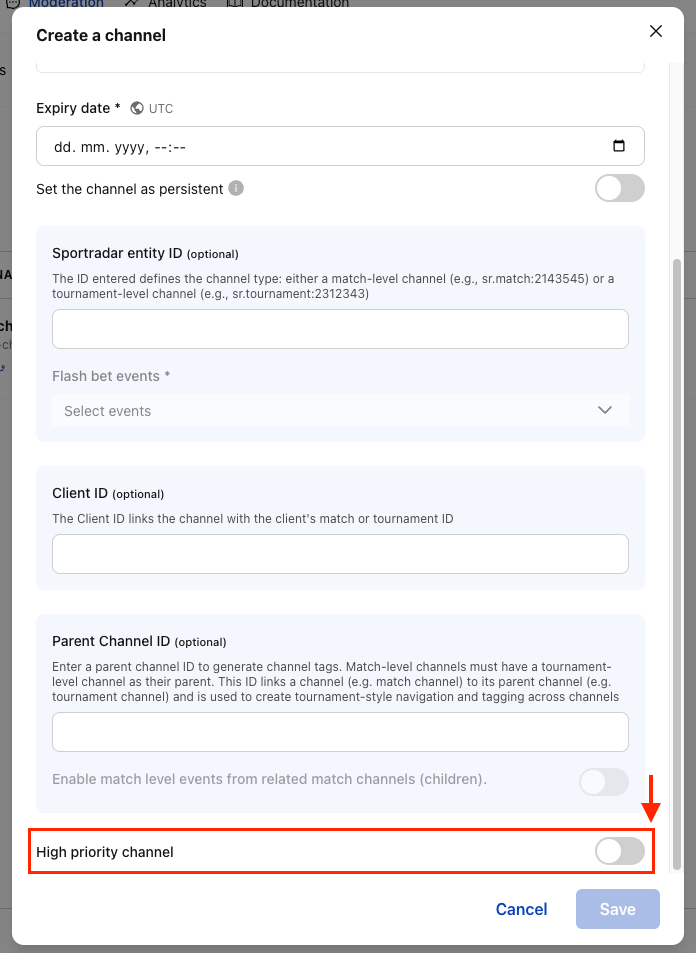
For New Channels:
Click "Create Channel" and fill in the required channel information. Locate the "High Priority Channel" toggle switch and toggle it to ON.
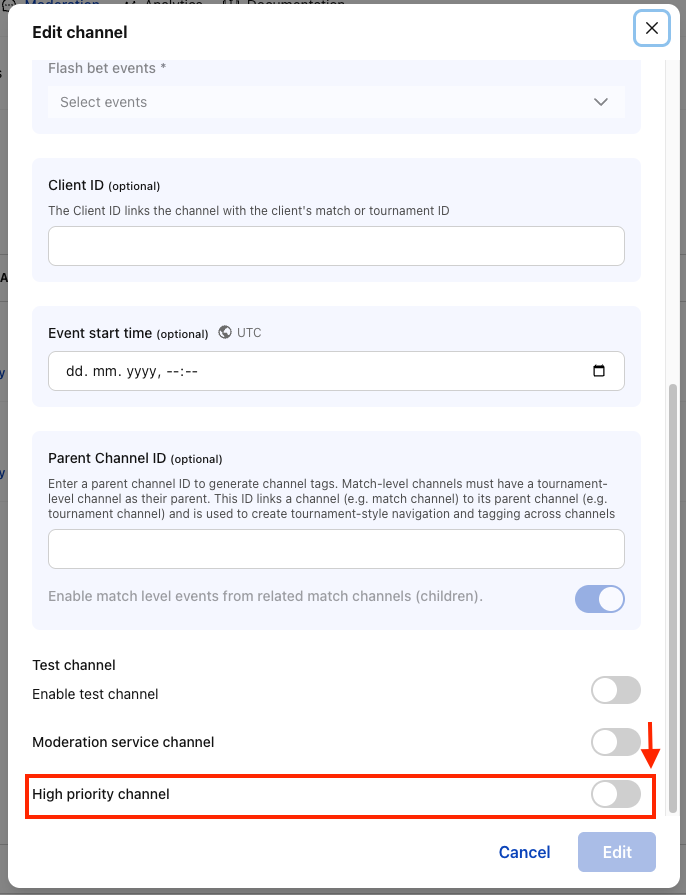
For Existing Channels:
Find the channel you want to modify in the channels list and click the "Edit" button. Locate the "High Priority Channel" toggle switch and toggle it to ON.
External Moderation Service Channels
- High priority cannot be enabled when a channel is set to use the External Moderation Service
- The high priority toggle will be disabled for external moderation channels
- This is because external moderation services handle their own priority systems
Permission Requirements
- Only users with Supervisor permissions can create or edit high priority channels
- Moderator and Guest users can view but cannot modify high priority settings
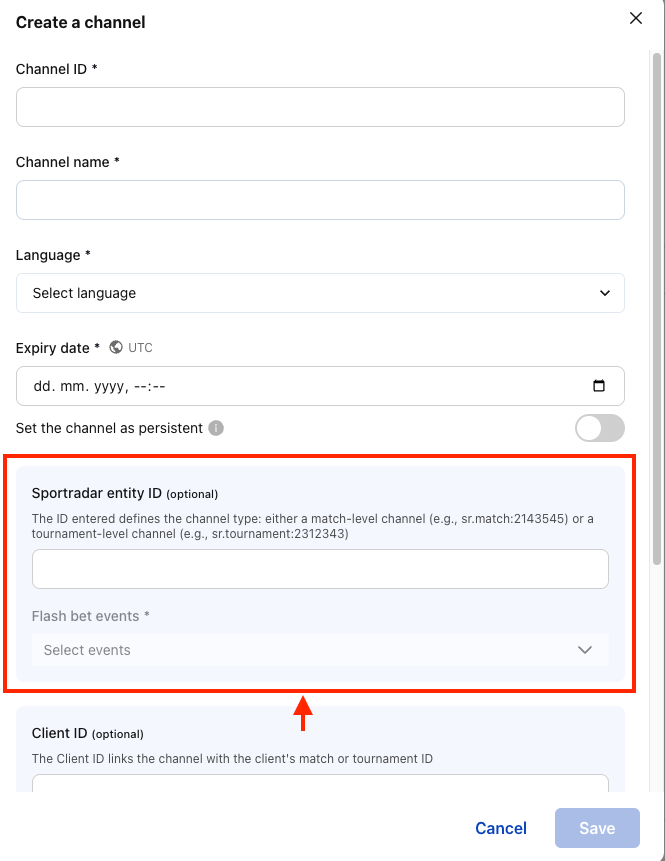
#Virtual Stadium Integration - Sportradar Entity ID Management
Sportradar Entity ID is a critical component that connects your Virtual Stadium moderation interface with Sportradar's sports data ecosystem. This unique identifier enables the system to automatically associate chat channels with specific sports events, competitions, and matches, providing enriched moderation context and automated content filtering based on real-time sports data.
#What Is an Sportradar Entity ID?
A Sportradar Entity ID is a unique identifier provided by Sportradar that corresponds to specific sports entities such as:
- Matches/Games: Individual sporting events
- Competitions: Tournaments, leagues, or series
- Teams: Sports teams participating in events
- Sports: Different sport categories (Soccer, Basketball, Tennis, etc.)
When properly configured, the Sportradar Entity ID allows the moderation system to:
- Display relevant match information in chat channels
- Apply sport-specific moderation rules
- Show event status and timing
- Enable automated content filtering based on game context
#Why Add Sportradar Entity IDs to Channels?
#Enhanced Channel Organization
- Automatic Channel Categorization: Channels are automatically tagged with sport types (Soccer, Basketball, etc.)
- Visual Channel Identification: Channels display with color-coded indicators:
- Green: Valid Sportradar Entity with verified match data
- Orange: Client competition ID present but no Sportradar verification
- Red: No match identification available
#Improved Moderation Context
- Event-Aware Moderation: Apply different rules based on game phase, sport type, or competition level
- Real-Time Match Data: Access to live scores, player information, and game statistics
- Automated Content Filtering: Enhanced spam detection using sports-specific terminology
#Compliance and Reporting
- Audit Trails: Link moderation actions to specific sporting events
- Regulatory Compliance: Meet sports betting compliance requirements
- Performance Analytics: Track moderation effectiveness by sport or competition type
#How to Add Sportradar Entity ID to Channels
- You must have Supervisor permissions
- The operator must be configured for Virtual Stadium integration
- Access to Sportradar Entity IDs from your sports data provider
#Sportradar Entity ID Format Examples
Typical Sportradar Entity ID formats include:
- Match IDs:
sr:match:12345678 - Competition IDs:
sr:competition:987654 - Tournament IDs:
sr:tournament:456789
Exact format depends on your Sportradar integration setup. For details on how to obtain these identifiers, see the guide.
#Managing Sportradar Entity Integration
#Channel Status Indicators
- Green Text with Sport Name: Valid Sportradar Entity with full data integration
- Orange "Unknown" Text: Client competition ID present but no Sportradar verification
- Red "No Match ID" Text: Missing both Sportradar Entity ID and client competition ID
#Troubleshooting Sportradar Entity Issues
#Common Problems and Solutions
Sportradar Entity ID Not Validating
- Verify the ID format with your Sportradar provider
- Check network connectivity to Sportradar services
- Ensure your API keys have proper permissions
Missing Event Data
- Confirm the Sportradar Entity ID corresponds to a current/upcoming event
- Check if the event is available in your Sportradar subscription
- Verify the event hasn't expired or been cancelled
Channel Type Not Displaying
- Refresh the page to reload Sportradar data
- Check if Event Types are properly selected
- Verify the Sportradar Entity ID corresponds to a supported sport
Sportradar Entity ID Management
- Maintain Documentation: Keep a database of Sportradar Entity IDs for recurring events
- Automate Population: Set up automated processes to populate IDs for scheduled matches
- Regular Audits: Regularly audit channels to ensure proper Sportradar Entity configuration
Event Lifecycle Management
- Appropriate Expiration: Configure suitable expiration times for match-specific channels
- Permanent Channels: Use for ongoing competitions
- Archive Completed Events: Maintain system performance by archiving old channels
#Client Competition ID
The Client Competition ID field is an optional identifier used to link a Virtual Stadium chat channel to a specific competition or match in your client system. This field works as an alternative or complement to the Sportradar Entity ID.
#What Is the Client Competition ID?
The Client Competition ID is your organization's internal identifier for a sports competition, match, or event. It allows you to:
- Link chat channels to matches/events in your own system
- Track and organize channels using your existing identifiers
- Enable event-based features without using Sportradar Entity IDs
- Maintain your own competition tracking independently
#When to Use Client Competition ID
#Use Cases
✅ Use Client Competition ID when:
- You have your own internal match/competition identification system
- You want to track channels independently of Sportradar
- You're managing events that may not be in the Sportradar system
- You need to link channels to your client platform's data
- Client Competition ID alone cannot enable FlashBet events
- Without a Sportradar Entity ID, the channel type will display as "unknown" (orange status)
- FlashBet event selection requires a valid Sportradar Entity ID
#How to Set the Client Competition ID
#When Creating a Channel
Click "Create a channel" button and scroll down to the "Related Competitions" section.

Locate the "Client Competition ID" field and enter your internal competition/match identifier. The field accepts alphanumeric values.
#When Editing a Channel
The Client Competition ID can be modified when editing an existing channel. Unlike some other fields, this value is not locked after creation.
#Client Competition ID Vs Sportradar Entity ID
#Viewing Client Competition ID
#In the Channel Hierarchy Modal

Navigate to the Channels page and click the hierarchy icon (📊) for any channel.

The hierarchy modal displays the Client Competition ID (if set) next to the channel information.
#Display Format
- With Sportradar Entity ID: Shows match type and both IDs
- With Client Competition ID only: Shows "unknown" with orange indicator and the Client Competition ID
- Without any ID: Shows "no match id" with red error indicator
#Validation Rules
#Field Requirements
- ✅ Optional: Not required to create a channel
- ✅ Alphanumeric: Accepts letters, numbers, and special characters
- ✅ Editable: Can be changed after channel creation
- ⚠️ No automatic validation: The system does not verify if the ID exists in your client system
#Error Handling
If you enter invalid characters or format, you'll see an error message in the related competitions section indicating the validation issue.
#Practical Examples
#Example 1: Client-Only Channel
Channel: "Premier League - Arsenal vs Chelsea"
Client Competition ID: "PL-2024-W15-ARS-CHE"
Sportradar Entity ID: (empty)
Result: Channel displays with "unknown" orange status#Example 2: Dual Identification
Channel: "Champions League Final"
Client Competition ID: "UCL-2024-FINAL"
Sportradar Entity ID: "sr:match:12345678"
Result: Full integration with verified match data and FlashBet events#Example 3: Migration Scenario
Starting with: Client Competition ID only
Later adding: Sportradar Entity ID to same channel
Result: Channel upgraded from "unknown" to verified status with full features#Best Practices
#✅ Recommended Practices
- Consistent Naming: Use a standardized format for all Client Competition IDs (e.g.,
LEAGUE-YEAR-MATCHNUM) - Include Both IDs: When possible, provide both Client Competition ID and Sportradar Entity ID for maximum functionality
- Document Mappings: Keep a record of how your Client Competition IDs map to Sportradar Entity IDs
- Use for Tracking: Leverage Client Competition IDs to link channels back to your platform's data
- Maintain Standards: Establish naming conventions that scale across your organization
#❌ What to Avoid
- Don't rely solely on Client Competition ID if you need FlashBet events
- Don't use Client Competition ID as the only identifier for time-sensitive events
- Don't expect automatic validation of Client Competition IDs
- Don't use inconsistent formats across different channels
#Related Features
#Parent Channel ID
- The Client Competition ID is independent from the Parent Channel ID
- A channel can have both a Parent Channel ID (for hierarchy) and a Client Competition ID (for match identification)
- Use Parent Channel ID for organizational structure, Client Competition ID for event tracking
#Event Start Time
- If using Client Competition ID without Sportradar Entity ID, the Event Start Time field must be manually entered
- With Sportradar Entity ID, the kick-off time is automatically retrieved from Sportradar data
- Always verify event timing when using Client Competition ID only
#FlashBet Events
- Requires Sportradar Entity ID to function
- Client Competition ID alone is not sufficient to enable event selection
- For FlashBet functionality, both IDs should be provided when possible
#Channel Hierarchy
The Virtual Stadium Moderation Interface supports channel hierarchy, allowing you to organize channels in a parent-child relationship structure. This enables better organization of related chat channels and event propagation from child channels to their parent.
#Parent Channel ID Field
The Parent Channel ID field allows you to establish hierarchical relationships between channels by linking a child channel (such as an individual match) to its parent channel (such as a tournament or competition). This creates a structured organization that enables tournament-style navigation and automatic tagging across related channels. For example, match-level channels should specify their corresponding tournament-level channel as the parent, allowing users to easily navigate between individual games and the broader competition context.
#When Creating a New Channel
When creating a channel, you can optionally specify a Parent Channel ID to establish a hierarchical relationship:
Click "Create a channel" button and fill in the required fields including Channel ID, Channel name, Expiry date (unless Permanent Channel is enabled), and Language.

In the Parent Channel ID field, enter the ID of an existing channel to make this a child channel. Leave Parent Channel ID empty to create a root-level channel.
#When Editing an Existing Channel
The Parent Channel ID field is disabled (read-only) when editing an existing channel. You cannot change the parent-child relationship after a channel has been created.
#Viewing Channel Hierarchy
#Accessing the Hierarchy Modal
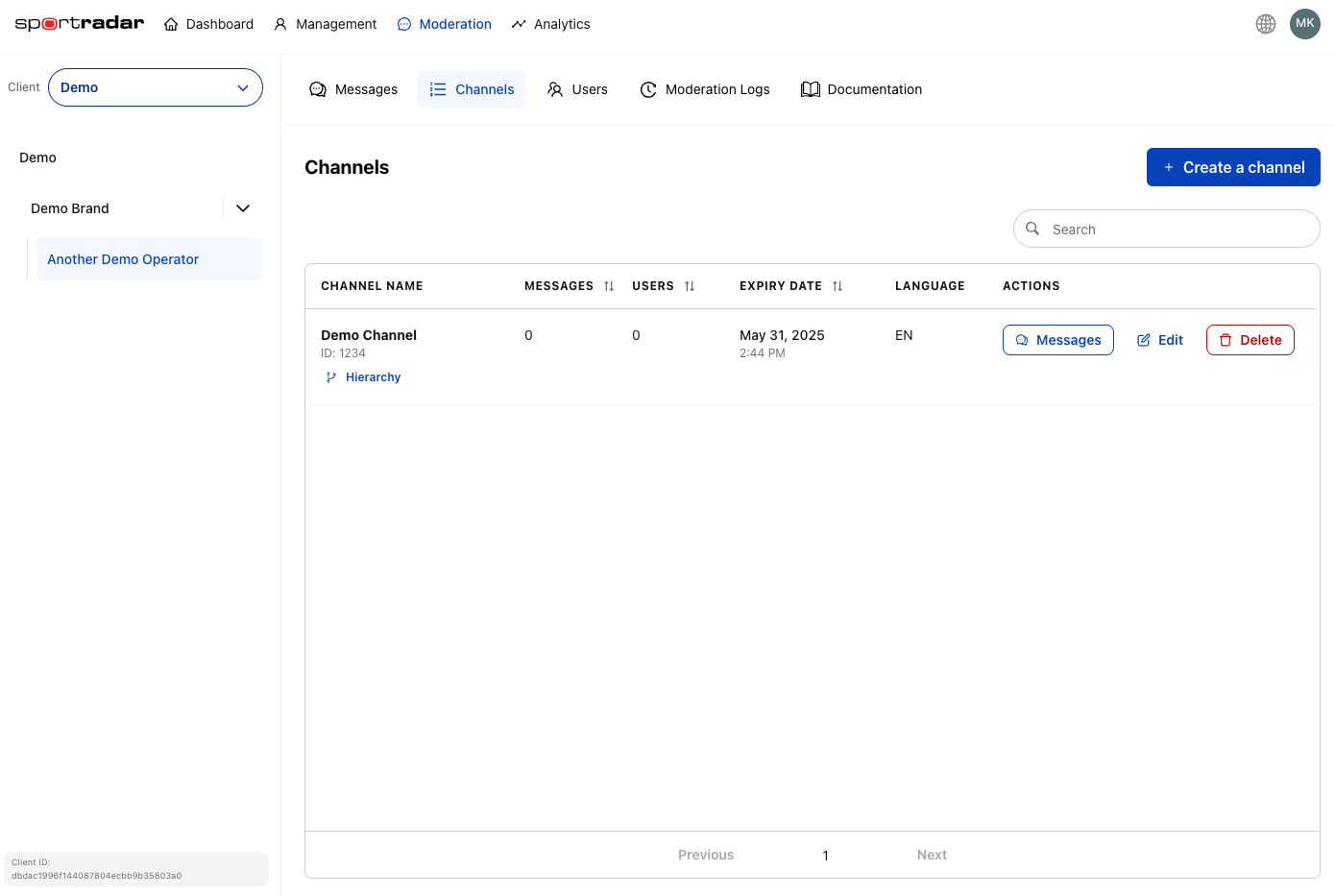
Navigate to the Channels page and locate the channel row in the table.
Click the hierarchy icon button (📊) in the actions column. The Channel Hierarchy Modal opens.
The hierarchy modal displays the complete parent-child structure for the selected channel.
#What You'll See
The hierarchy modal displays three sections:
Parent Channel (if selected channel has a parent)
- Channel name and ID (clickable to copy)
- Channel type indicator (Sportradar Entity ID or Client Competition ID status)
Current Channel
- The channel you selected, with full details
Children Channels (if any exist)
- List of all direct child channels
- Channel names, IDs, and type indicators for each child
Example Structures:
Channel with Parent:
  Parent Channel
  └── Current Channel ← you are here

Channel with Children:
  Current Channel ← you are here
  ├── Child Channel 1
  ├── Child Channel 2
  └── Child Channel 3

Standalone Channel:
  Current Channel ← you are here
(No parent or children)#Example Hierarchy Use Cases
UEFA Champions League Tournament Structure:
Parent: UEFA Champions League 2024
├── Child: Real Madrid vs Barcelona
├── Child: Bayern Munich vs PSG
└── Child: Manchester City vs Inter Milan
Sport League Hierarchy:
Parent: Soccer - General Discussion
├── Child: Premier League 2024/25
│   ├── Grandchild: Manchester United vs Liverpool
│   ├── Grandchild: Arsenal vs Chelsea
│   └── Grandchild: Manchester City vs Tottenham
└── Child: La Liga 2024/25
    ├── Grandchild: Real Madrid vs Barcelona
    ├── Grandchild: Atletico Madrid vs Sevilla
    └── Grandchild: Valencia vs Real Sociedad
This structure allows for:
- Top-level sport category (Soccer) for general discussions
- League-specific channels for competition-focused conversations
- Individual match channels for game-specific commentary
- Event propagation from matches → leagues → sport category for comprehensive monitoring and user engagement
#Event Propagation: Receive Events From Children
#What It Does
The "Receive events from children" setting controls whether events (such as FlashBet match events) from child channels are propagated up to the parent channel.
#How to Configure

Open the Create/Edit Channel modal and locate the "Receive events from children" toggle switch.

Enable to propagate child events to this channel.
Disable to keep events isolated to individual channels.
#Behavior
- Enabled: All events from child channels appear in both the child channel AND the parent channel
- Disabled: Events remain isolated to their respective channels
#Event Propagation Visual Examples
Understanding how event propagation works is crucial for effective channel hierarchy management. The following examples illustrate the difference between enabled and disabled event propagation.
#Example 1: Event Propagation Disabled
When event propagation is disabled, events remain isolated to their respective channels:
Tournament Channel: "UEFA Champions League 2024"
├── Events: None (empty)
│
├── Match 1: "Real Madrid vs Barcelona"
│   └── Events: Goal (Benzema 23'), Yellow Card (Alba 45')
│
└── Match 2: "Bayern Munich vs PSG"
└── Events: Goal (Mbappe 15'), Goal (Müller 67')Result:
- Parent channel shows no events
- Each child channel shows only its own events
- Moderators must monitor each channel individually
#Example 2: Event Propagation Enabled
When event propagation is enabled, all child events appear in the parent channel:
Tournament Channel: "UEFA Champions League 2024"
├── Events: Goal (Benzema 23'), Yellow Card (Alba 45'),
│           Goal (Mbappe 15'), Goal (Müller 67')
│
├── Match 1: "Real Madrid vs Barcelona"
│   └── Events: Goal (Benzema 23'), Yellow Card (Alba 45')
│
└── Match 2: "Bayern Munich vs PSG"
└── Events: Goal (Mbappe 15'), Goal (Müller 67')Result:
- Parent channel shows all events from all children
- Each child channel still shows its own events
- Moderators can monitor all matches from the tournament channel
#Example 3: Multi-Level Hierarchy With Mixed Propagation
Sport: "Soccer - General Discussion" (Propagation: ENABLED)
├── Events: All events from Premier League and La Liga
│
├── League: "Premier League 2024/25" (Propagation: ENABLED)
│   ├── Events: Events from all 3 matches below
│   │
│   ├── Match: "Manchester United vs Liverpool"
│   │   └── Events: Goal (Salah 12'), Goal (Rashford 34')
│   │
│   ├── Match: "Arsenal vs Chelsea"
│   │   └── Events: Goal (Saka 8'), Red Card (Silva 78')
│   │
│   └── Match: "Manchester City vs Tottenham"
│       └── Events: Goal (Haaland 5'), Goal (Kane 89')
│
└── League: "La Liga 2024/25" (Propagation: DISABLED)
    ├── Events: None (propagation disabled)
    │
    ├── Match: "Real Madrid vs Barcelona"
Result:
- Soccer channel: Shows events from Premier League matches only (La Liga propagation disabled)
- Premier League channel: Shows events from all 3 child matches (propagation enabled)
- La Liga channel: Shows no events from child matches (propagation disabled)
- Individual match channels: Always show their own events regardless of propagation settings
#Visual Comparison Table
| Scenario | Parent Channel View | Child Channel View | Use Case |
|---|---|---|---|
| Propagation OFF | Empty (no events) | Own events only | Independent monitoring of each match |
| Propagation ON | All child events aggregated | Own events only | Centralized monitoring from parent |
| Mixed Hierarchy | Events from enabled children only | Own events only | Selective aggregation by importance |
#Channel Hierarchy Limitations
#What You CAN Do:
- ✅ Create a child channel by specifying a Parent Channel ID
- ✅ Enable/disable event propagation from children
- ✅ View the complete hierarchy structure
- ✅ Create multiple child channels under one parent
#What You CANNOT Do:
- ❌ Change the Parent Channel ID after creation
- ❌ Move a channel to a different parent
- ❌ Create circular parent-child relationships
- ❌ Edit parent-child relationships through the edit modal