This page describes the client integration instructions for the Live Match Tracker widget for golf. The same match.lmtPlus widget is used for golf, but with different behaviour and configuration. Only a small subset of regular LMT properties is supported for golf.
This guide covers only what is needed for golf integration.
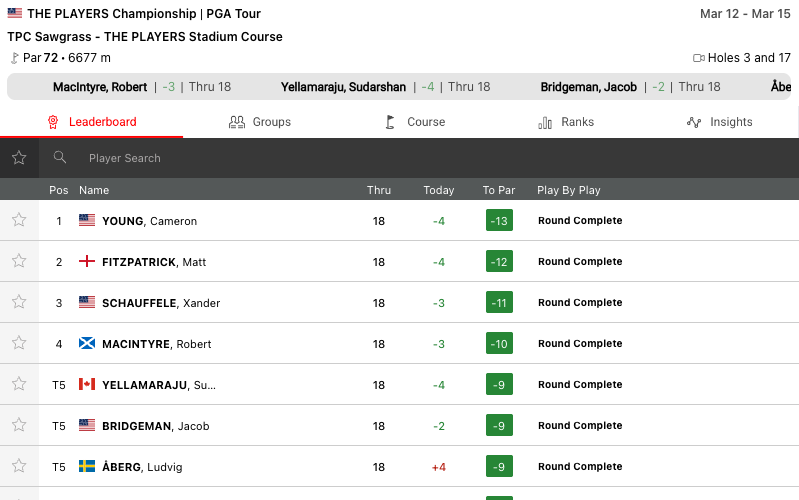
Default widget display
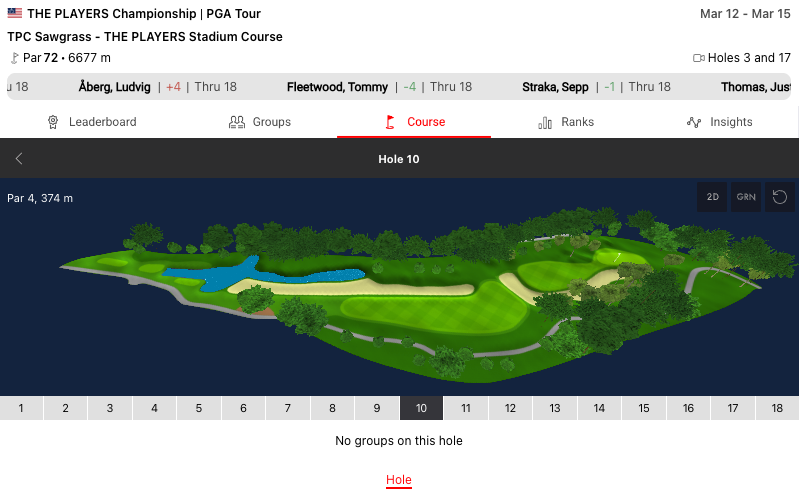
Golf Course Hole Overview
See the LMT Golf widget demo.
#API Reference
#Required Parameters
- widget-name:
match.lmtPlus - entityId: The unique identifier for the golf event is the only required parameter. It should be formatted as a full entity string (e.g.
sr:stage:<id>).
Environment Requirements
Technical Requirements:
- JavaScript enabled
- XMLHttpRequest support for data fetching
- CSS3 support for styling and animations
Expanded Table
#Theming
Theming for the golf widget is more limited than for the full LMT.
Tabs use the same theming and branding options as the regular LMT, while the main widget components are more limited and only the rules below apply to the main widget area.
Existing widget theming can be used for the regular LMT to have the same font and background-color rules applied to the golf widget — no extra setup needed. LMT Golf automatically sets light or dark theme based on background-color used.
If you are setting up theming for the first time, follow the Styling Widgets guide to set up default theming, then apply golf-specific overrides (if needed) as shown below.
Only font-family, background-color and color values can be changed. Other properties should be left as-is.
/* MIAN BACKGROUND COLOR */
.sr-bb {
    background-color: #fff;
}

/* DEFAULT TEXT COLOR */
.sr-bb .srt-base-1 {
    color: #333;
}

/* PRIMARY TEXT COLOR */
.sr-bb .srt-base-1-primary {
    color: red;
}

/* SURFACE BACKGROUND COLOR */
.sr-bb
No other srt-* classes are used in LMT Golf widget and changing their values won't make any difference in appearance of LMT Golf widget.
#Streaming
Streaming for Golf is available only with Premium LMT Feature.
To enable video playback authorization, a callback function needs to be passed to the widget config using streamAuth prop. The widget calls this function on each playback auth request, so your implementation must generate a fresh token on every call.
The callback must resolve to: { auth: string, timestamp: number, operatorId: number }:
operatorIdidentifies your operator. Both theoperatorIdand the secret token will be provided during client setup process.auth(generated with secret token and timestamp) andtimestampare auth payload values
Check example below for some pseudo code on how to generate the payload.
Keep the streaming secret on your server only. Never expose it in browser code.
#Stream Auth Example
Premium streaming auth function. Must return Promise<{ auth: string, timestamp: number, operatorId: number }>. It is invoked on each playback auth request and should generate a new token. Generated token is valid for 5 minutes.
#Integration Examples
#Property Name Transformations
Properties do not always transfer from the above table directly into integration code. Properties must be transformed differently for each integration method:
JavaScript/Programmatic Integration
- Property names remain unchanged in camelCase
- Properties become members of the 4th parameter object in
SIR()call - Example:
cardVariant: "compact"
In javascript integration, the properties go into an object which is passed as the 4th argument of the call ti SIR() function. Please see Global SIR API
HTML/Declarative Integration
- Convert camelCase to lowercase with dashes, e.g. cardVariant becomes card-variant
- Add
data-sr-prefix - Example:
cardVariant→data-sr-card-variant