API keys are essential for integrating your Virtual Stadium platforms with the Moderation interface. Each operator has its own unique API key that allows secure communication between your platform and the moderation system. These keys are required for sending messages, user data, and receiving moderation decisions.
#When You Need API Keys
- Integrating with virtual stadium platforms
- Setting up automated message forwarding
- Connecting external moderation systems
- Enabling real-time moderation responses
#Copying API Keys
Each operator is assigned unique API keys, serving as identifiers. These keys are specific to each operator and must be configured in your integration.
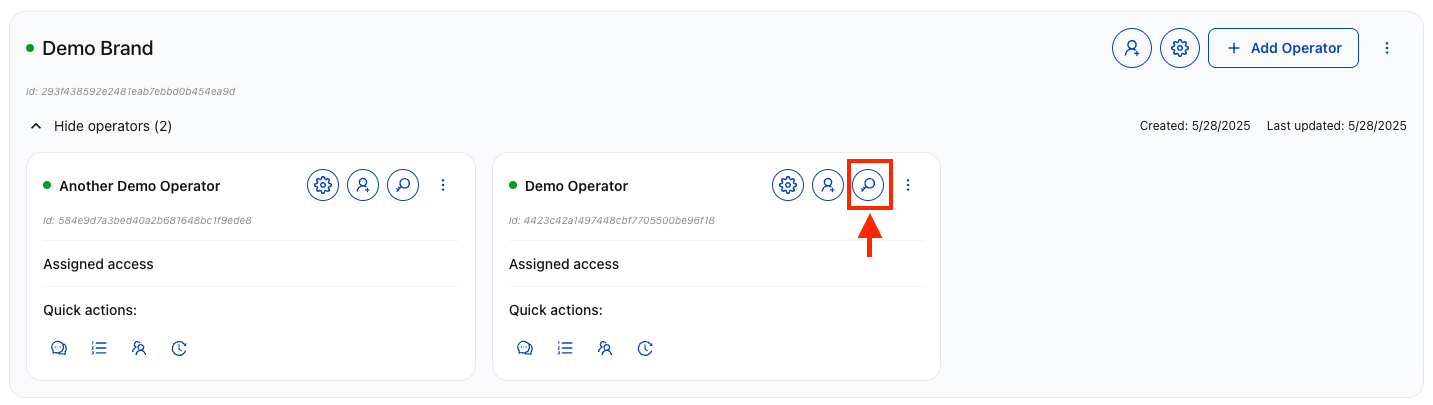
Navigate to the Dashboard and locate the operator for which you need the API key. Click "API Keys" in the corresponding operator's row.

This opens a modal displaying all API keys for the operator. Click on a key to copy it to your clipboard. You can also enable or disable API keys using the toggle switch next to each key.
To generate a new API key, click "Add new key". The new key will appear in the list and can be immediately copied for use in your integration.
#API Key Management
#Key Features
- Instant Copy: Click any key to copy it to your clipboard
- Enable/Disable: Toggle keys on/off without deleting them
- Multiple Keys: Create multiple keys per operator for different environments
- Secure Display: Keys are shown in a secure, readable format
#Key Operations
- Generate New Key: Create additional keys for development, staging, or production
- Copy Existing Key: Quickly copy keys for configuration
- Toggle Status: Enable or disable keys as needed
- Secure Access: Only supervisors can view and manage API keys
#Integration Checklist
After copying your API key:
#Store Securely
Save the key in your secure configuration management system.
#Configure Integration
Add the key to your virtual stadium platform configuration.
#Test Connection
Verify the key works in your development environment.
#Document Usage
Record which keys are used for which environments/integrations.
- Full Access: API keys provide complete access to operator functions
- Secure Storage: Store keys in encrypted configuration systems only
- Authorized Personnel: Share keys only with authorized technical staff
- Regular Rotation: Periodically generate new keys and retire old ones
- Immediate Revocation: Disable compromised keys immediately
- Environment Separation: Use different keys for development, staging, and production
#Troubleshooting
#Common Issues
- Invalid Key: Ensure the key is copied correctly without extra characters
- Disabled Key: Check that the key is enabled in the dashboard
- Wrong Operator: Verify you're using the key for the correct operator
- Permissions: Confirm your account has supervisor access to view keys
#Key Rotation
When rotating API keys:
#Step 1
Generate a new key while keeping the old one active.
#Step 2
Update your integration to use the new key.
#Step 3
Test thoroughly in all environments.
#Step 4
Disable the old key only after confirming the new key works.
After securing your API keys, proceed to invite supervisors and moderators and create channels for your operator.