Operators are sub-entities under brands that handle specific virtual stadium channels and moderation activities. Each operator manages its own set of channels, users, and moderation configurations. Operators are where the actual day-to-day moderation work happens.
#When to Add Operators
- Setting up different sports or game types
- Creating separate environments for different markets
- Establishing region-specific operations
- Organizing by different betting products
#Adding an Operator
Ensure you have Supervisor permissions before creating an operator.

Click the "Add Operator" button within the expanded brand card. This button is only available for users with Supervisor permissions.

Fill in the operator name field and click Create new operator.

When a new operator is succesfully added, it will reveal the rest of the operator settings, that can be managed.
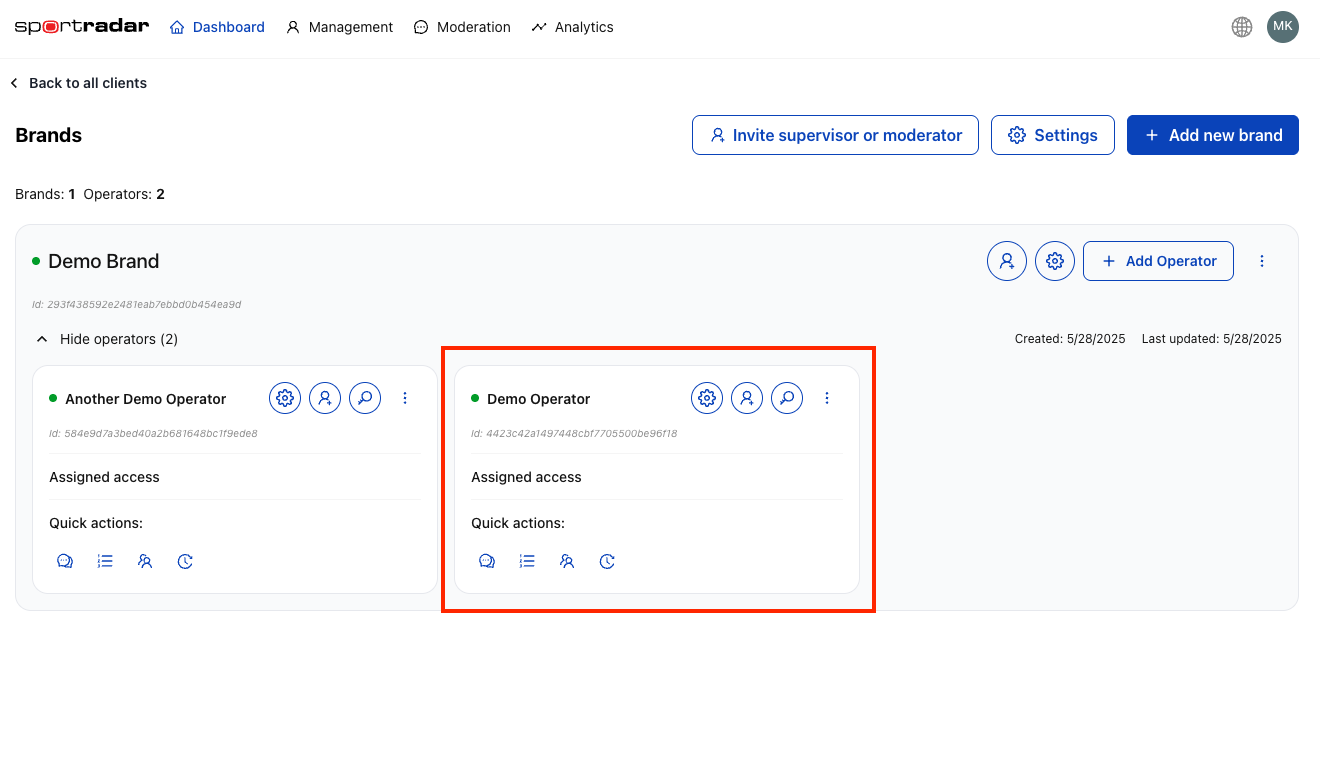
The new operator will appear inside the brand card.
#Save and Test
#Step 1
Click Save to persist the operator configuration.
#Step 2
Verify the operator appears in the brand's operator list on the Dashboard.
#Step 3
Test basic functionality (posting messages, API integration, moderation rules) in a staging environment before going live.
Operators inherit default settings from their parent brand. Any operator-level settings override brand defaults where applicable. Changes at the brand level may cascade to operators — review and test changes before applying them in production.
#Configuration Checklist
- Operator Name — use a clear, unique name.
- Status — enable to make the operator active.
- Message Settings — set message length limits and retention policy.
- Spam Detection — configure post rate limits and intervals.
- Blacklisted Words — add operator-specific forbidden terms.
- Autopilot / AI Moderation — set confidence thresholds.
- Sanctioning Rules — define suspension lengths and offence score behavior.
- Reactions — enable/disable emojis and add custom reactions if needed.
- API Keys — generated per operator for integrations.
#Advanced Operator Settings
These settings allow fine-grained control per operator. Many of them can inherit defaults from the parent brand (see the inheritance warning below).
#Blacklisted Words Management
- Add words or phrases that should trigger automatic moderation.
- Matches are applied in real-time to all messages.
- Brand-level blacklists are applied first; operator-level lists can extend or override them.
#Reaction Configuration
- Enable/disable emoji reactions in chat.
- Create custom reactions specific to the operator.
- Set which user types can react (e.g. vip, Normal).
#Autopilot Moderation
- Configure AI thresholds for automatic message flagging.
- Set confidence levels for automated actions (auto-hide, auto-flag).
- Define escalation rules for ambiguous cases that require human review.
#Sanctioning Rules
- Configure automatic suspension and ban rules.
- Define escalation based on user offense scores.
- Set time-based penalties and repeat-offence behavior.
#Deleting an Operator
Deleting an operator will remove its settings, associated API keys, and moderation history. This action is irreversible.
To delete an operator:
#Step 1
Expand the parent brand containing the operator.
#Step 2
Click the three-dot menu on the operator card.
#Step 3
Select Delete Operator.
#Step 4
Confirm deletion in the dialog.
#Important Notes
- Each operator inherits default settings from its parent brand but can have unique moderation rules.
- API keys are generated per operator and are required for integrations.
- Both the brand and the operator must be enabled for the operator to function.
- Operators cannot be deleted if they have active resources; remove dependent resources first.
After creating operators, proceed to configure API keys, invite moderators, and set operator-specific moderation rules. See the API Keys section and Invite Supervisors and Moderators.