---
title: "Adding Loading Indicators to Widgets"
canonical_url: "https://apidocs.sportradar.com/resources/widgets/docs/tutorials/examples/example-widget-loading"
markdown_url: "https://apidocs.sportradar.com/resources/widgets/docs/tutorials/examples/example-widget-loading.md"
last_updated: "2026-03-23T18:44:01Z"
---
# Adding Loading Indicators to Widgets
## Intended Audience
This tutorial is for:
- **Frontend developers** integrating Sportradar widgets
- **UX engineers** improving perceived performance during widget loading
- Developers familiar with [basic widget integration](https://apidocs.sportradar.com/resources/widgets/docs/tutorials.md)
- Those wanting to enhance user experience with loading states
## Goals
By completing this tutorial, you will:
- Understand the widget loading lifecycle and timing
- Implement a custom loading indicator for widgets
- Use the `onTrack` callback to detect when widgets are ready
- Handle the transition from loading state to loaded widget
- Troubleshoot common loading indicator issues
- Improve perceived performance with visual feedback
## Prerequisites
Before starting this tutorial, ensure you have:
- **Valid Sportradar Widget license** - Contact [Sales](mailto:sales@betradar.com) if needed
- **Basic HTML/CSS/JavaScript knowledge** - DOM manipulation, CSS animations, event handling
- **Completed [Getting Started Guide](https://apidocs.sportradar.com/resources/widgets/docs/tutorials.md)** - Understanding of basic widget integration
- **Web development environment** - Text editor and modern browser
> **Info**
>
> This tutorial uses the `onTrack` callback, which is a core widget feature available for all widget types.
***
## Overview
### Understanding Widget Loading Phases
Widget loading happens in multiple asynchronous phases:
1. **Script download** - Widgetloader framework is fetched
2. **Widget registration** - `SIR` function becomes available
3. **Widget initialization** - Widget code replaces target element content
4. **Data fetching** - Widget requests match/tournament data
5. **Rendering** - Widget displays components or error
> **Warning**
>
> The time between widget initialization and data rendering can vary from milliseconds to several seconds depending on network conditions. A loading indicator improves user experience during this wait.
### The Challenge
Users see a blank space while widgets load, which can:
- Create confusion about whether the page is working
- Make the page feel slow or broken
- Reduce user confidence in your integration
A loading indicator provides visual feedback that content is on the way.
***
## Tutorial Steps
### Step 1: Understand the Basic Widget Integration
Start with a standard widget integration. The widgetloader script downloads asynchronously, then the `SIR` function loads the widget.
```html
```
#### What Happens During Loading
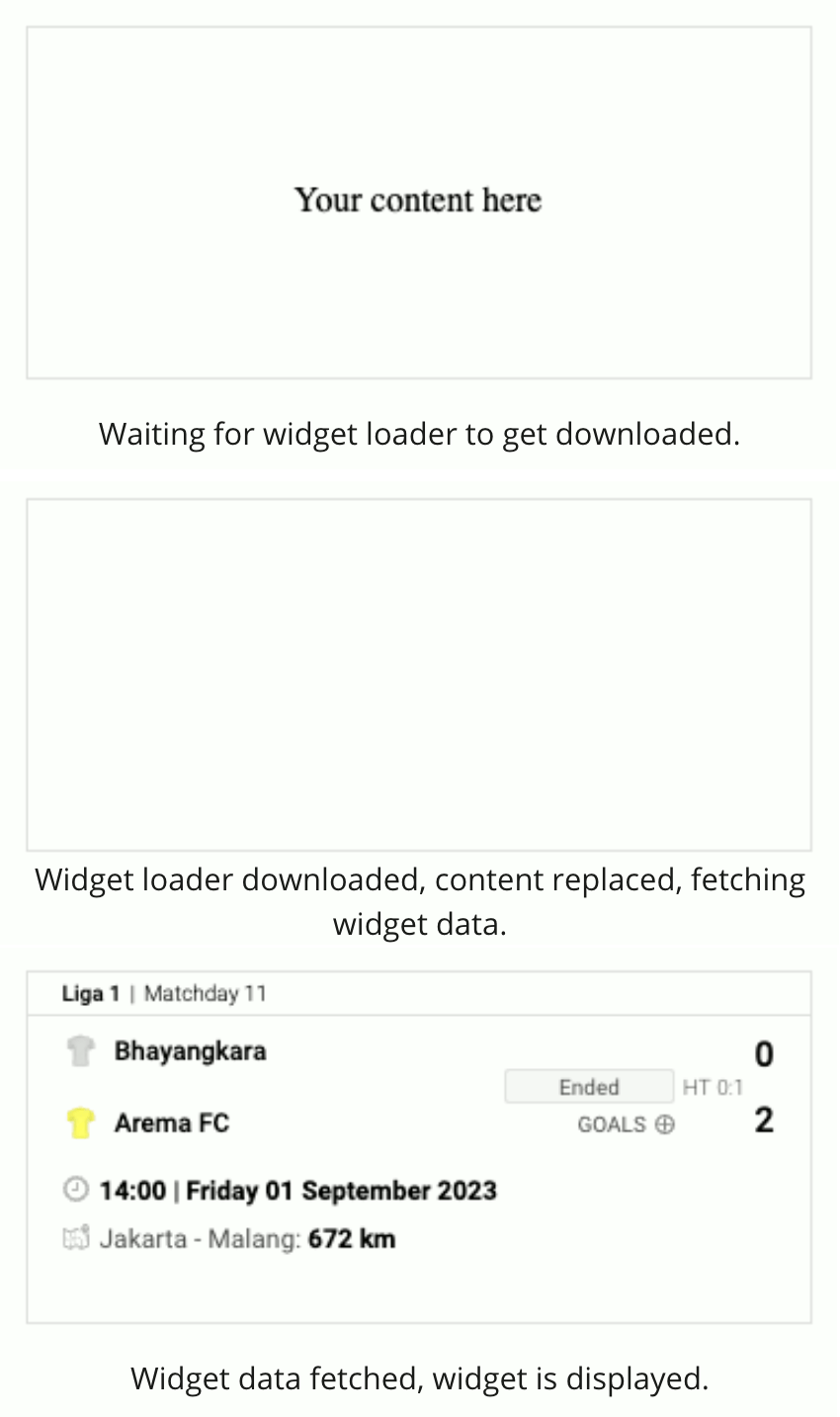
> **Danger**
>
> **Important:** Even though we call `SIR("addWidget", ...)` immediately, it only executes after the widgetloader downloads. Once executed, it:
>
> 1. Replaces the target element's content with empty widget code
> 2. Initializes and starts loading the widget
> 3. Fetches required data
> 4. Displays components or shows an error
***
### Step 2: Create the Loading Indicator
Add a separate element for your loading indicator. Keep it outside the widget's target element.
#### HTML Structure
```html {8-12}
```
> **Warning**
>
> **Critical:** Never add the loading indicator inside the widget's target element (`#sr-widget-1`). The widget will replace all content in that element when it initializes.
#### CSS Styling
Add styles to size the elements and animate the loader.
**View Complete CSS**
```css
body {
display: flex;
justify-content: center;
}
.widgets {
max-width: 360px;
width: 100%;
}
/* Set same size for widget and loader containers */
.box {
border: rgba(0,0,0,0.12) solid 1px;
min-height: 160px;
}
/* Center loader inside content element */
#your-content {
display: flex;
align-items: center;
justify-content: center;
}
/* Spinning loader animation */
.loader {
border: 16px solid #f3f3f3;
border-radius: 50%;
border-top: 16px solid #3498db;
width: 40px;
height: 40px;
animation: spin 2s linear infinite;
}
@keyframes spin {
0% { transform: rotate(0deg); }
100% { transform: rotate(360deg); }
}
```
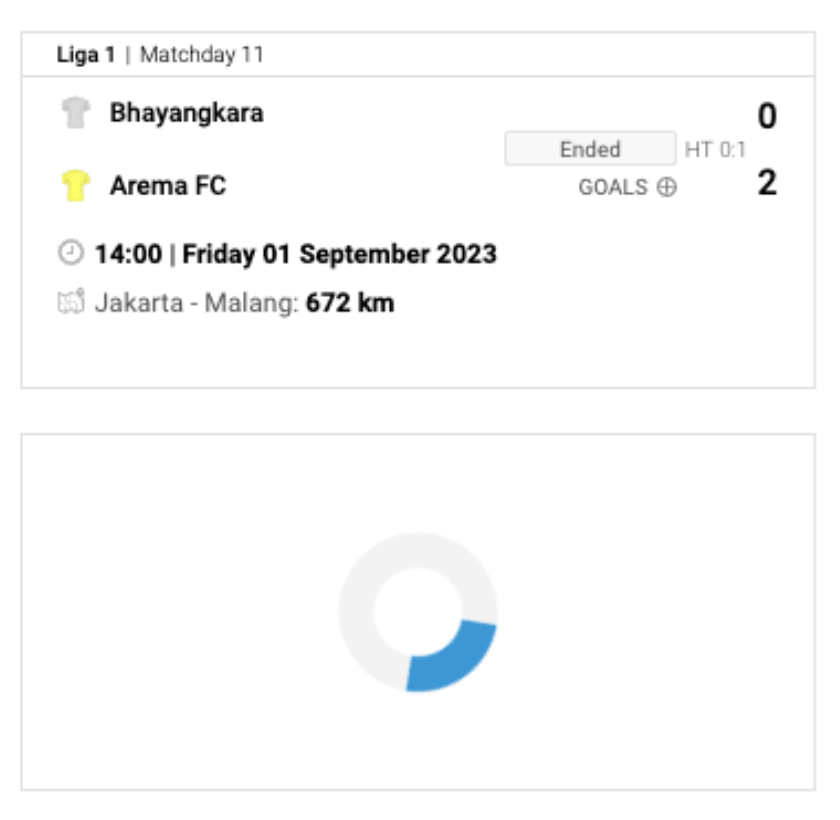
#### Visual Result
> **Tip**
>
> You can use any loading indicator style - spinners, skeleton screens, progress bars, or branded animations. Just ensure it provides clear visual feedback.
***
### Step 3: Implement the Loading State Logic
Use the `onTrack` callback to detect when the widget has loaded data, then swap visibility between the loader and widget.
#### Add the onTrack Callback Function
```js {1,3-11}
let widgetHasInitialized = false;
function onTrack(target, data) {
// Listen for 'data_change' event - fired when widget receives data
if (target === "data_change" && !data.error && !widgetHasInitialized) {
// Show the widget
document.getElementById('sr-widget-1').style.display = 'block';
// Hide the loader
document.getElementById('your-content').style.display = 'none';
widgetHasInitialized = true;
}
}
```
> **Info**
>
> **The `data_change` Event:** This event fires when the widget successfully receives data. If `data.error` is undefined, the widget will render successfully.
#### Pass onTrack to Widget Configuration
```js {2}
SIR("addWidget", "#sr-widget-1", "match.scoreboard", {
matchId: 41960917,
onTrack: onTrack
});
```
#### Hide Widget Initially With CSS
Add CSS to hide the widget element until data loads.
```css {2-4}
/* Hide widget until data loads */
#sr-widget-1 {
display: none;
}
```
#### Complete Integration
**View Complete Working Example**
```html
Widget with Loading Indicator
```
> **Tip**
>
> **Optimization:** The `widgetHasInitialized` flag ensures we only change display once, even if multiple `data_change` events fire.
***
## Troubleshooting
### Issue: Loading Indicator Disappears Too Early
**Symptom:** The loading indicator vanishes before the widget displays, leaving a blank space.
**Cause:** The loading indicator was placed inside the widget's target element.

> **Danger**
>
> **Never add content to the widget's target element.** When `addWidget` executes, it replaces ALL content in the target element with widget code.
**Incorrect Implementation:**
```html
```
**Correct Implementation:**
```html
```
### Issue: Widget Shows Before Data Loads
**Cause:** Forgot to hide the widget element initially with CSS.
**Solution:** Add CSS to hide the widget until `data_change` fires:
```css
#sr-widget-1 {
display: none;
}
```
### Issue: Both Loader and Widget Visible
**Cause:** The `onTrack` callback isn't firing or has incorrect logic.
**Solution:** Verify:
1. `onTrack` is passed to widget configuration
2. Element IDs match exactly
3. You're checking for `target === "data_change"`
4. Browser console shows no JavaScript errors
***
## Advanced: Handling Errors
You can extend the `onTrack` callback to handle loading errors:
```js {5-10}
function onTrack(target, data) {
if (target === "data_change" && !widgetHasInitialized) {
widgetHasInitialized = true;
if (data.error) {
// Handle error state
document.getElementById('your-content').innerHTML =
'Failed to load widget
';
} else {
// Show widget on success
document.getElementById('sr-widget-1').style.display = 'block';
document.getElementById('your-content').style.display = 'none';
}
}
}
```
***
## Key Takeaways
### Separate Elements
Always keep the loading indicator in a separate element from the widget's target. The widget replaces its target element's content.
### Use onTrack Callback
The `onTrack` callback with `data_change` event is the reliable way to detect when a widget has loaded and is ready to display.
### Hide Widget Initially
Start with the widget hidden (`display: none`) and only show it after the `data_change` event confirms successful loading.
***
## Further Reading
### Core Documentation
- [Getting Started Guide](https://apidocs.sportradar.com/resources/widgets/docs/tutorials.md) - Basic widget integration
- [Widget Events (onTrack)](https://apidocs.sportradar.com/resources/widgets/docs/tutorials/widgets-events.md) - Complete event reference
- [Widget Configuration](https://apidocs.sportradar.com/resources/widgets/docs/tutorials/widgets-configuration.md) - All configuration options
### Related Tutorials
- [Widget Visibility in Carousels](https://apidocs.sportradar.com/resources/widgets/docs/tutorials/examples/example-widget-carousels-scrollers-sliders.md) - Managing visibility in dynamic layouts
- [Error Handling](https://apidocs.sportradar.com/resources/widgets/docs/tutorials/troubleshooting/widget-errors.md) - Comprehensive error handling guide
### Performance Resources
- [Web.dev: Perceived Performance](https://web.dev/rail/) - Why loading indicators matter
- [MDN: CSS Animations](https://developer.mozilla.org/en-US/docs/Web/CSS/CSS_Animations) - Creating custom loaders
- [MDN: display Property](https://developer.mozilla.org/en-US/docs/Web/CSS/display) - Understanding display values