---
title: "Widget Visibility in Carousels and Sliders"
canonical_url: "https://apidocs.sportradar.com/resources/widgets/docs/tutorials/examples/example-widget-carousels-scrollers-sliders"
markdown_url: "https://apidocs.sportradar.com/resources/widgets/docs/tutorials/examples/example-widget-carousels-scrollers-sliders.md"
last_updated: "2026-03-23T18:44:01Z"
---
# Widget Visibility in Carousels and Sliders
## Intended Audience
This tutorial is for:
- **Frontend developers** implementing widget carousels, tabs, or sliders
- **Integration engineers** working with dynamic widget visibility
- Developers familiar with [basic widget integration](https://apidocs.sportradar.com/resources/widgets/docs/tutorials.md)
- Those experiencing layout or sizing issues with hidden widgets
## Goals
By completing this tutorial, you will:
- Understand why `display: none` causes widget layout issues
- Learn two approaches to controlling widget visibility
- Implement visibility toggling while preserving space
- Implement visibility toggling without taking space
- Trigger proper resize events for layout recalculation
- Choose the right approach for your use case
## Prerequisites
Before starting this tutorial, ensure you have:
- **Valid Sportradar Widget license** - Contact [Sales](mailto:sales@betradar.com) if needed
- **Basic HTML/CSS knowledge** - Understanding of CSS display and visibility properties
- **Basic JavaScript knowledge** - DOM manipulation and event handling
- **Integrated widget** - Working widget on your page (see [Getting Started](https://apidocs.sportradar.com/resources/widgets/docs/tutorials.md))
- **Web development environment** - Text editor and modern browser with DevTools
> **Info**
>
> This tutorial applies to any widget that needs dynamic visibility control, particularly in carousels, tab interfaces, accordions, or responsive layouts.
***
## Overview
### The Problem
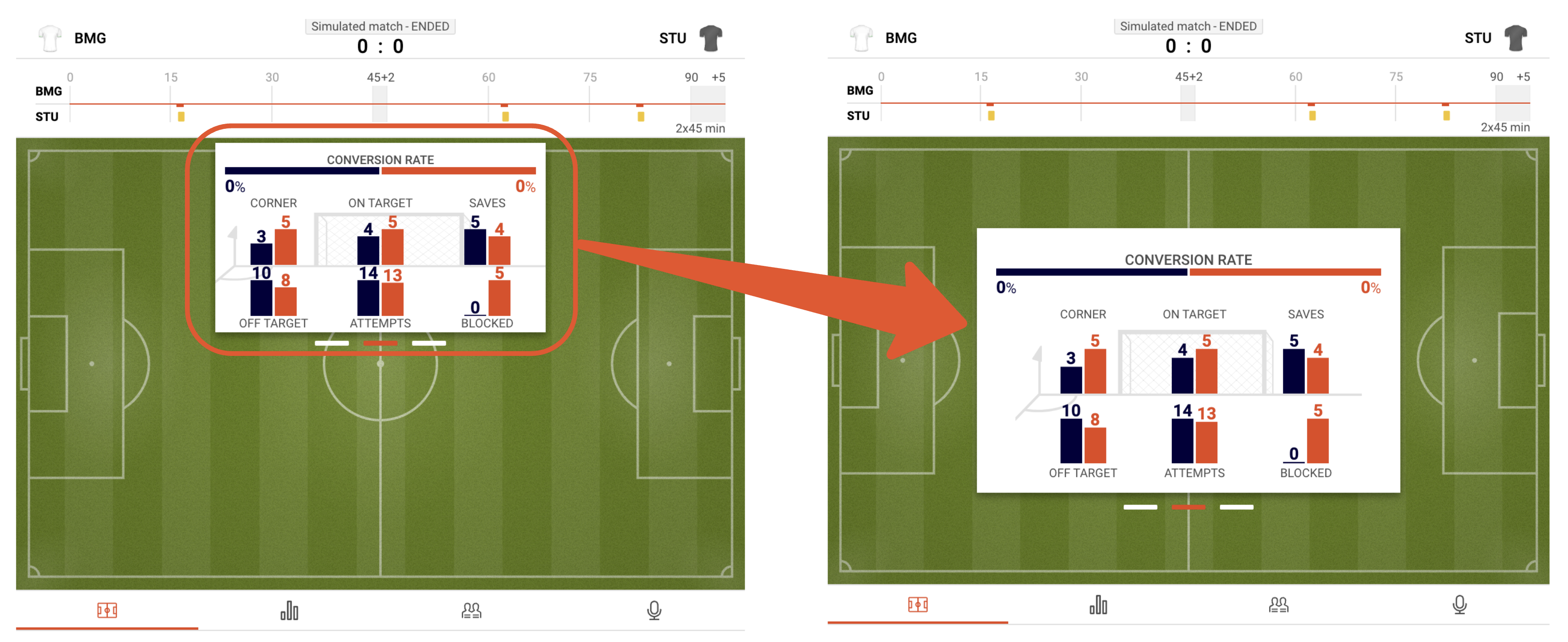
When a widget is added to a page and hidden using `display: none;` in CSS, it creates layout issues:
- The widget cannot measure its container dimensions
- Responsive breakpoints default to the smallest screen size
- Adjacent elements may misalign due to incorrect size calculations
### The Solution
There are two approaches depending on your layout requirements:
1. **Preserve Space** - Use `visibility: hidden` to keep the widget's space in the layout
2. **Collapse Space** - Use `display: none` with resize events to reclaim space
This tutorial covers both approaches.
***
## Tutorial Steps
### Approach 1: Preserve Space With `visibility` Property
Use this approach when you want the hidden widget to maintain its space in the layout, preventing other elements from shifting.
#### Step 1: Set Initial Visibility State
Add the widget container with `visibility: hidden` in the inline style.
```html {1}
```
> **Tip**
>
> Using `visibility: hidden` keeps the element in the DOM and maintains its layout space, unlike `display: none`.
#### Step 2: Initialize Widget Normally
Add the widget using standard initialization. The widget will render and measure correctly even though it's not visible.
```html
```
#### Step 3: Implement Visibility Toggle
Create a toggle function that switches between `visible` and `hidden` states.
```js {5}
const widget = document.getElementById('widget');
// Toggle widget visibility without affecting layout
const onWidgetToggle = () => {
widget.style.visibility = widget.style.visibility === 'hidden' ? 'visible' : 'hidden';
}
```
#### Result
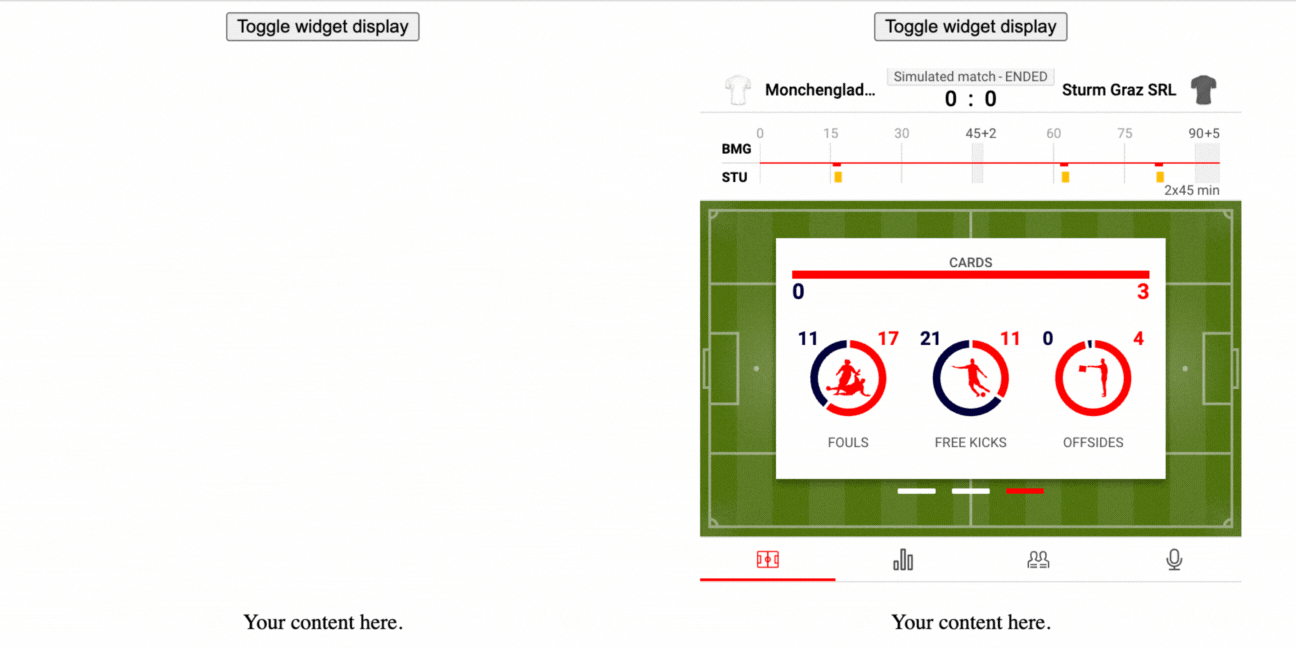
The widget toggles visibility while maintaining its space in the layout:
> **Info**
>
> **When to use this approach:**
>
> - Carousel/slider where all slides should maintain equal height
> - Tab interfaces where content area shouldn't resize
> - Layouts where shifting elements would be jarring
***
### Approach 2: Collapse Space With `display` Property
Use this approach when you want hidden widgets to collapse and allow other content to take their space.
#### Step 1: Set Initial Display State
Add the widget container with `display: none` in the inline style.
```html {1}
```
> **Warning**
>
> Widgets initialized while `display: none` may not render correctly. You must trigger a resize event when making them visible.
#### Step 2: Initialize Widget Normally
Add the widget using standard initialization.
```html
```
#### Step 3: Implement Display Toggle With Resize Event
Create a toggle function that changes display AND triggers a resize event.
```js {5-8}
const widget = document.getElementById('widget');
// Toggle widget display and trigger resize
const onWidgetToggle = () => {
// First change display property
widget.style.display = widget.style.display === 'none' ? 'block' : 'none';
// Then trigger resize event for layout recalculation
window.dispatchEvent(new Event('resize'));
}
```
> **Danger**
>
> **Critical:** Always dispatch the resize event AFTER changing display. The widget needs this event to recalculate its responsive breakpoints and internal layout.
#### Result
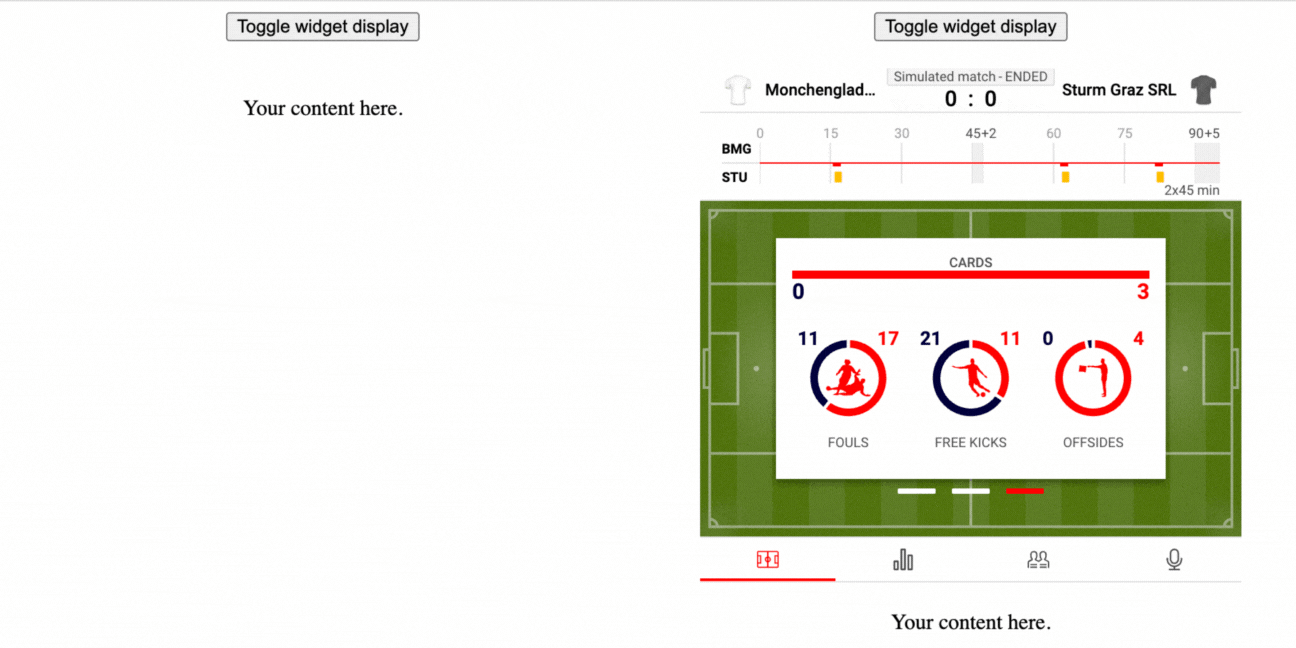
The widget toggles visibility while collapsing/expanding its space:
> **Info**
>
> **When to use this approach:**
>
> - Accordion interfaces where content should collapse
> - Mobile responsive layouts to save vertical space
> - Dynamic content loading where hidden items shouldn't reserve space
***
## Complete Implementation Examples
**Approach 1: Preserve Space**
**View Complete HTML**
```html
Widget Visibility - Preserve Space
```
***
## Key Takeaways
### Use `visibility` for Fixed Layouts
Choose `visibility: hidden` when your layout requires consistent spacing and you don't want elements to shift when widgets appear/disappear.
### Use `display` for Dynamic Layouts
Choose `display: none` when you want content to collapse and allow other elements to take the space, but always trigger resize events.
### Always Dispatch Resize Events
When showing widgets that were `display: none`, always call `window.dispatchEvent(new Event('resize'))` to ensure proper rendering.
***
## Further Reading
### Core Documentation
- [Getting Started Guide](https://apidocs.sportradar.com/resources/widgets/docs/tutorials.md) - Basic widget integration
- [Widget Customization](https://apidocs.sportradar.com/resources/widgets/docs/tutorials/widgets-customization.md) - Theming and styling
- [Responsive Layouts](https://apidocs.sportradar.com/resources/widgets/docs/tutorials/responsive-layouts.md) - Responsive design patterns
### Related Tutorials
- [ShadowDOM Integration](https://apidocs.sportradar.com/resources/widgets/docs/tutorials/examples/example-shadowdom-mutationobserver.md) - Advanced DOM integration
- [US Sports Integration](https://apidocs.sportradar.com/resources/widgets/docs/tutorials/examples/example-us-integration.md) - US-specific configurations
### Web Platform Resources
- [MDN: CSS visibility](https://developer.mozilla.org/en-US/docs/Web/CSS/visibility) - Comprehensive visibility property reference
- [MDN: CSS display](https://developer.mozilla.org/en-US/docs/Web/CSS/display) - Display property documentation
- [MDN: resize event](https://developer.mozilla.org/en-US/docs/Web/API/Window/resize_event) - Window resize event documentation